Edge Compression Control in Cloudflare
Cloudflare Compression Rules customize the compression applied to responses sent from Cloudflare’s global network to website visitors, based on file extension and content type. Powered by the Ruleset Engine, Compression Rules allow administrators to define preferred compression algorithms—such as gzip and Brotli—for particular file types.
Cloudflare compresses some responses by default based on content type. Compression Rules allow operators to customize this default behavior.
Algorithm Ordering and Visitor Negotiation
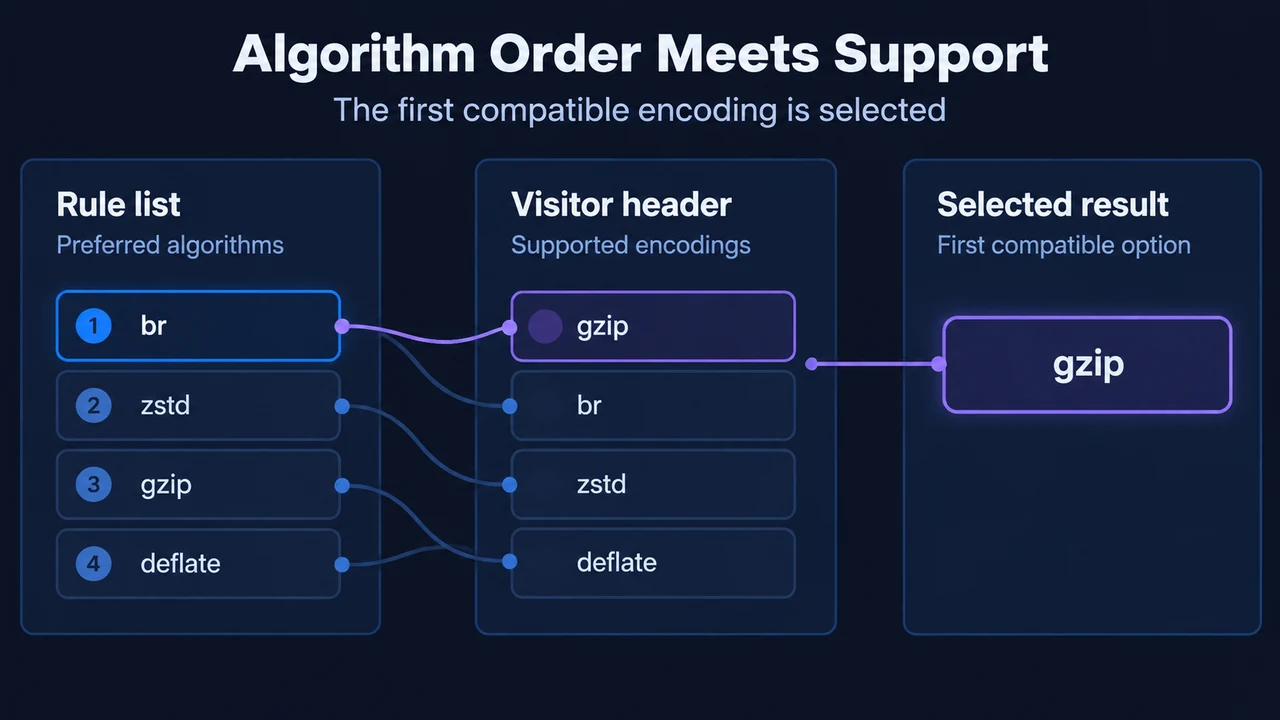
When a compression rule matches an incoming request and lists multiple compression algorithms (such as gzip and Brotli), Cloudflare selects the first algorithm from the list that the visitor’s browser supports.
Cloudflare determines browser support from the accept-encoding HTTP request header, which browsers send automatically to indicate which compression formats they can decompress. If a compression rule matches but the visitor’s browser does not support any of the compression algorithms configured in the rule, Cloudflare will not compress the response.
Rule Evaluation Precedence
If multiple compression rules match the same request, the last matching rule takes precedence.
Supported Matching Fields
The following fields are documented as commonly used in expressions of compression rules:
| Field in Expression Builder | Field Name |
|---|---|
| Media Type | http.response.content_type.media_type |
| File extension | http.request.uri.path.extension |
| N/A | raw.http.request.uri.path.extension |
Origin Boundaries and the no-transform Directive
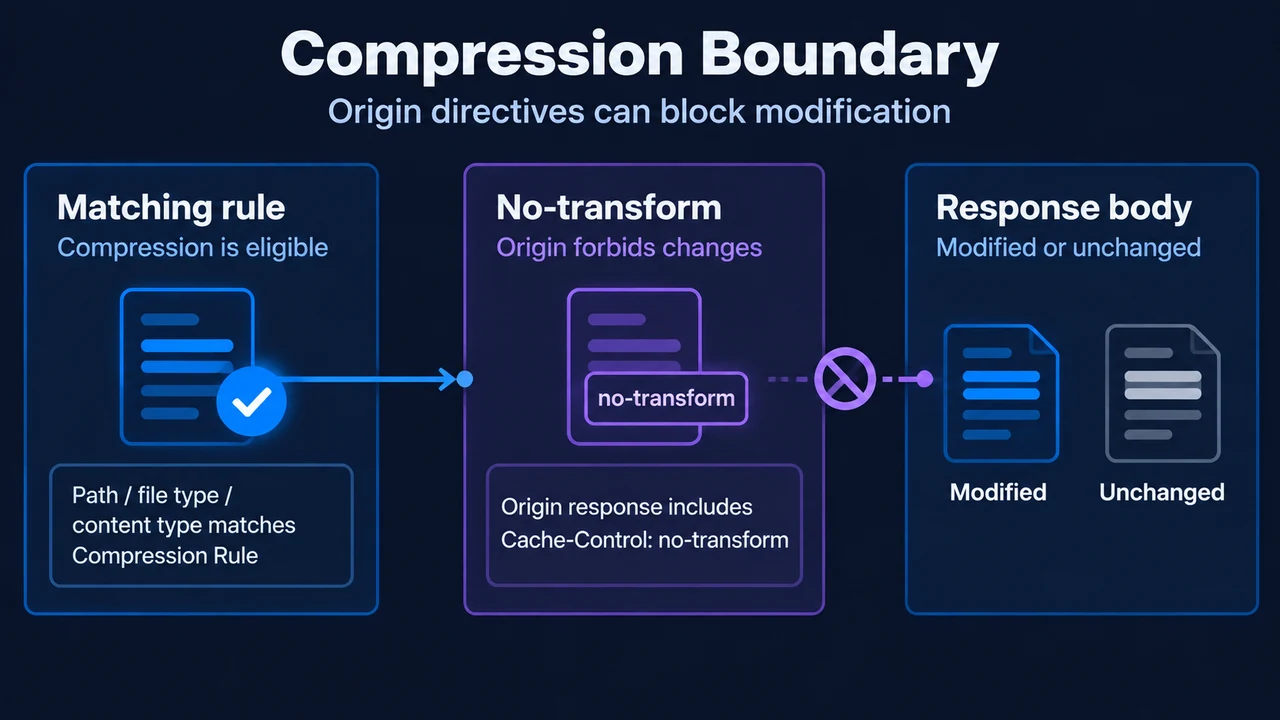
If a compression rule matches but the origin server’s response includes a cache-control: no-transform HTTP header, the compression rule will not modify the response. Origin servers use this header to indicate that intermediaries like Cloudflare should not alter the response body.
Plan Availability and Rule Quotas
Compression Rules are available across all Cloudflare plans with the following rule allowances:
| Cloudflare Plan | Number of Rules |
|---|---|
| Free | 10 |
| Pro | 25 |
| Business | 50 |
| Enterprise | 300 |
Configuring Rules in the Dashboard
Administrators can configure compression rules in the Cloudflare dashboard using the following documented steps:
- In the Cloudflare dashboard, navigate to the Rules Overview page.
- Select Create rule > Compression Rule (or select an available rule template under Overview > Templates).
- Enter a descriptive name for the rule in Rule name.
- Under When incoming requests match, choose whether to apply the rule to default content types (content types Cloudflare compresses by default) or to requests that match a custom filter expression.
- To define a custom expression, use the Expression Builder (specifying one or more values for Field, Operator, and Value) or manually enter an expression using the Expression Editor.
- Under Compression options, set the compression options.
- To save and deploy the rule, select Deploy. Alternatively, select Save as Draft if not ready to deploy. If matching a hostname in the rule expression, you may be prompted to create a proxied DNS record for that hostname.
When troubleshooting Compression Rules, Cloudflare Trace can be used to determine if a rule triggers for a specific URL.
Research Method and Limitations
This article was prepared directly from the supplied public Cloudflare documentation excerpts for Compression Rules retrieved on September 17, 2026. No competing coverage or external sources were available. Technical descriptions are strictly restricted to the visible primary excerpts, which specify plan allowances, supported expression field names without unstated parsing semantics, exact cache-control: no-transform behavior, and dashboard configuration options. This guide does not include benchmark tests, lab experiments, or unverified protocols.
Text version of the diagrams
- Algorithm Order Meets Support: Rule list — Preferred algorithms; Visitor header — Supported encodings; Selected result — First compatible option
- Compression Boundary: Matching rule — Compression is eligible; No-transform — Origin forbids changes; Response body — Modified or unchanged